There are many reasons to move the Fortnite game to another folder on your PC. It may be because of low storage space or personal preference. Let’s look at the most common scenario and learn how to move your Fortnite files to another drive and folder on a Windows 11 PC.
Why do you want to move your Fortnite files?
There are two main reasons you want to move your game: either you are upgrading from HDD to SSD, or you have a low storage space in your C:\ drive. If it is the first reason, you should refer to another article on how to transfer files and apps on the new drive. However, if you are low on disk space or want to store your Epic Games installed files on another drive, follow this step-by-step guide.
How to move Fortnite to another Folder on a new Drive or PC
If you’re using Epic Fornite and want to move the install files onto a new drive, you can do so by following the steps below:
- Take a backup of the Fortnite folder
- Uninstall Fortnite on Epic Games Launcher
- Install Fortnite on new or custom Locations
- Cancel the Download
- Move the backup folder
Backup Fortnite Folder
It is essential to take a backup of your already installed Fortnite files. To do so, go to the Fortnite file location C:\Program Files\Epic Games\ and right-click on the folder to copy. Paste it into another directory or drive on your PC.
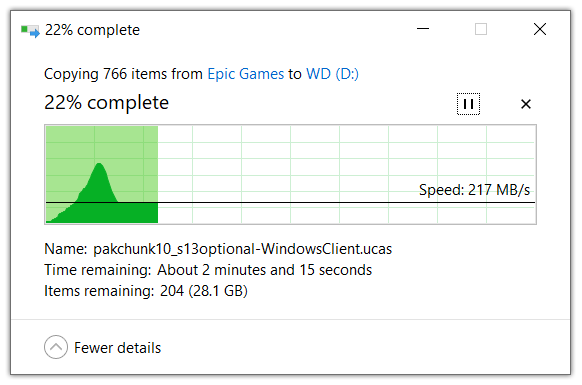
In my case, I like to move Fortnite from C:\ to D:\ drive on the same PC. So, I will copy it to my D:\ drive which is an additional NVMe SSD on my laptop. However, if you plan to move Fortnite to another PC, paste it on any external or detachable drive.
Uninstall Fortnite on Epic Games Launcher
After backing up the Fortnite installed folder, it’s time to uninstall the game. This step is vital to move your files to another drive on the same PC. However, if you want to copy it on a different PC, you may skip this step.
1. To uninstall Fornite, launch your Epic Games Launcher.
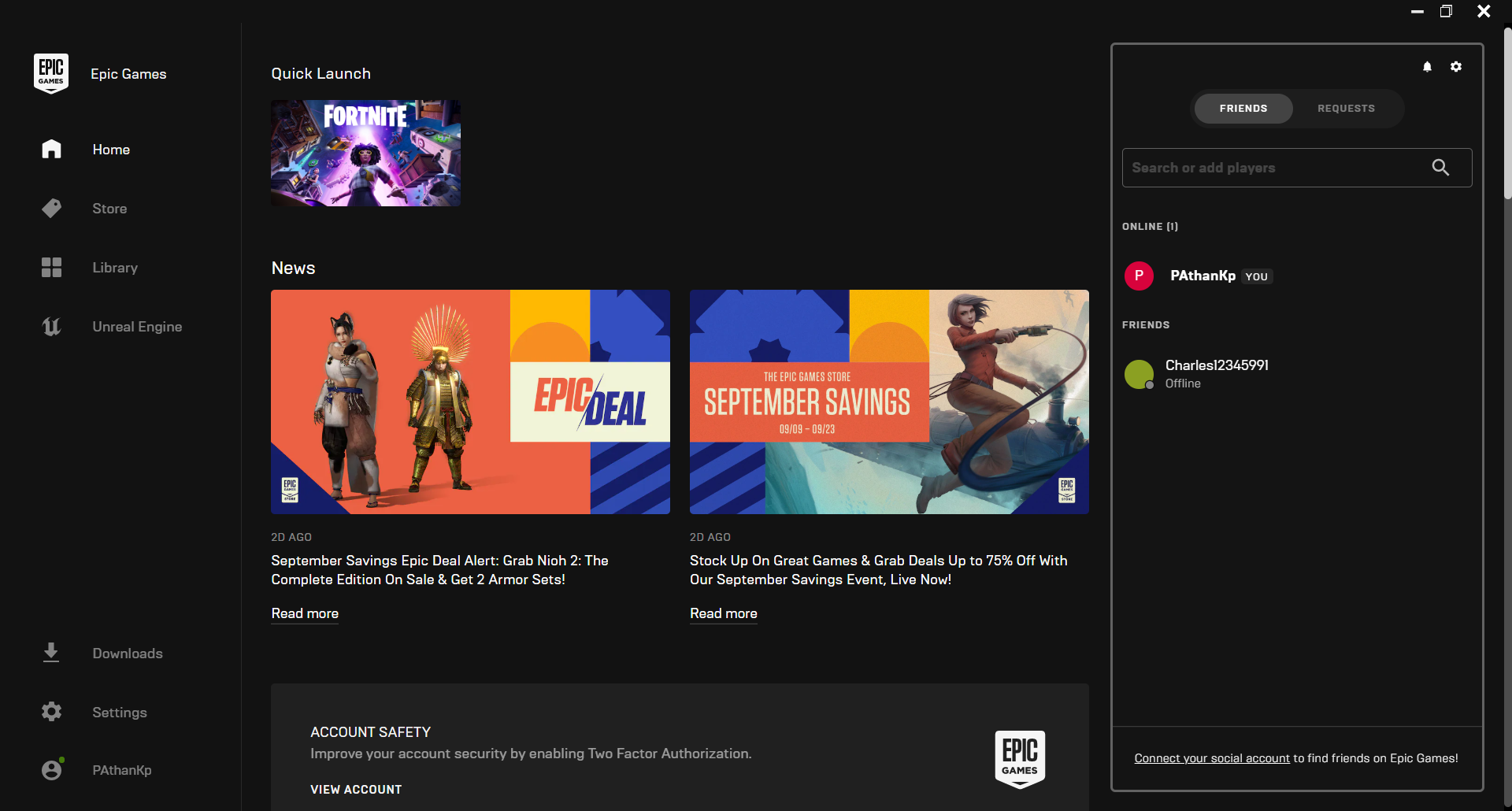
2. Select “Library” from the left side menu.
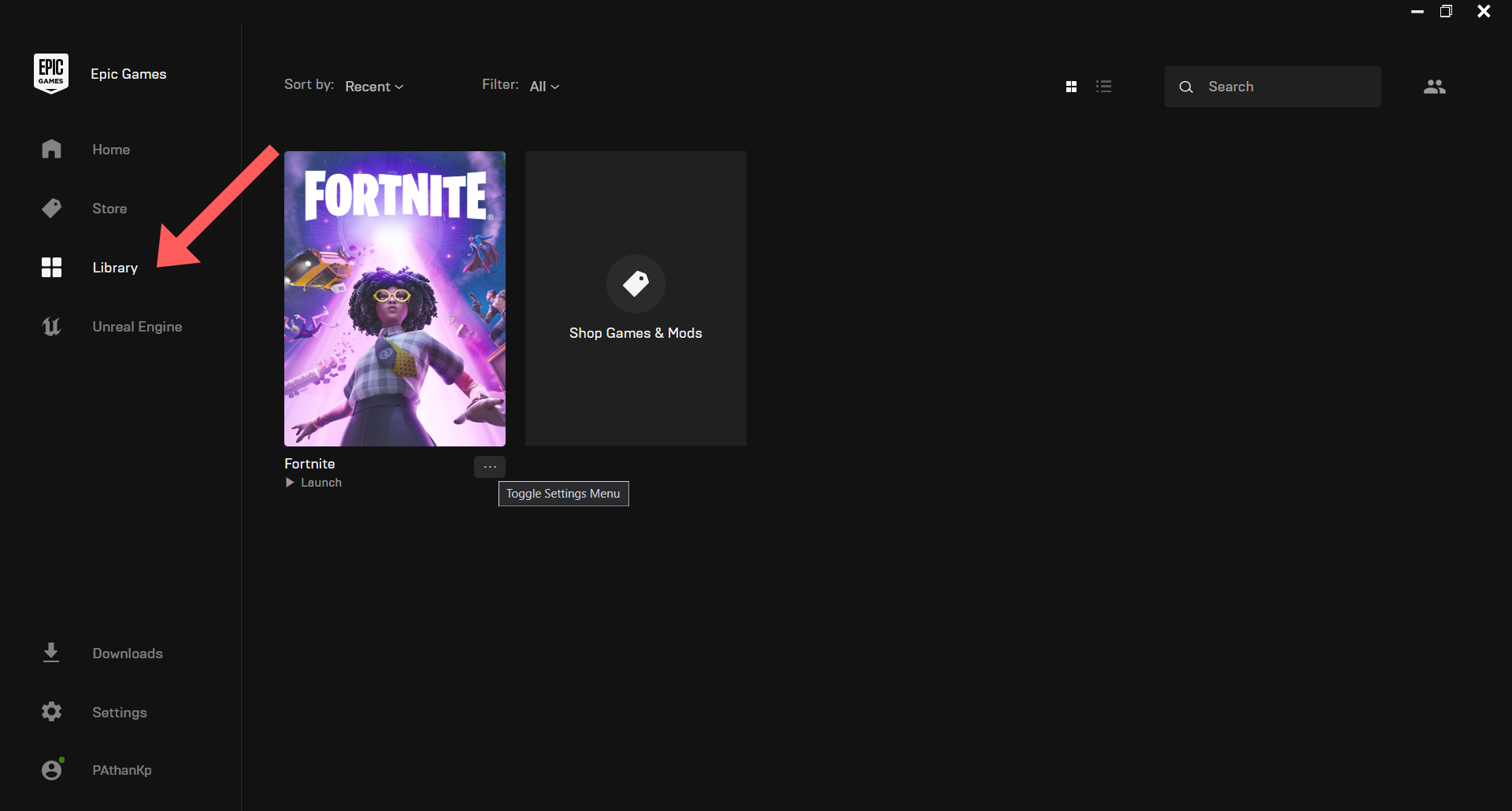
3. Click the game “Settings Menu” (three dots) for the sub-menu.
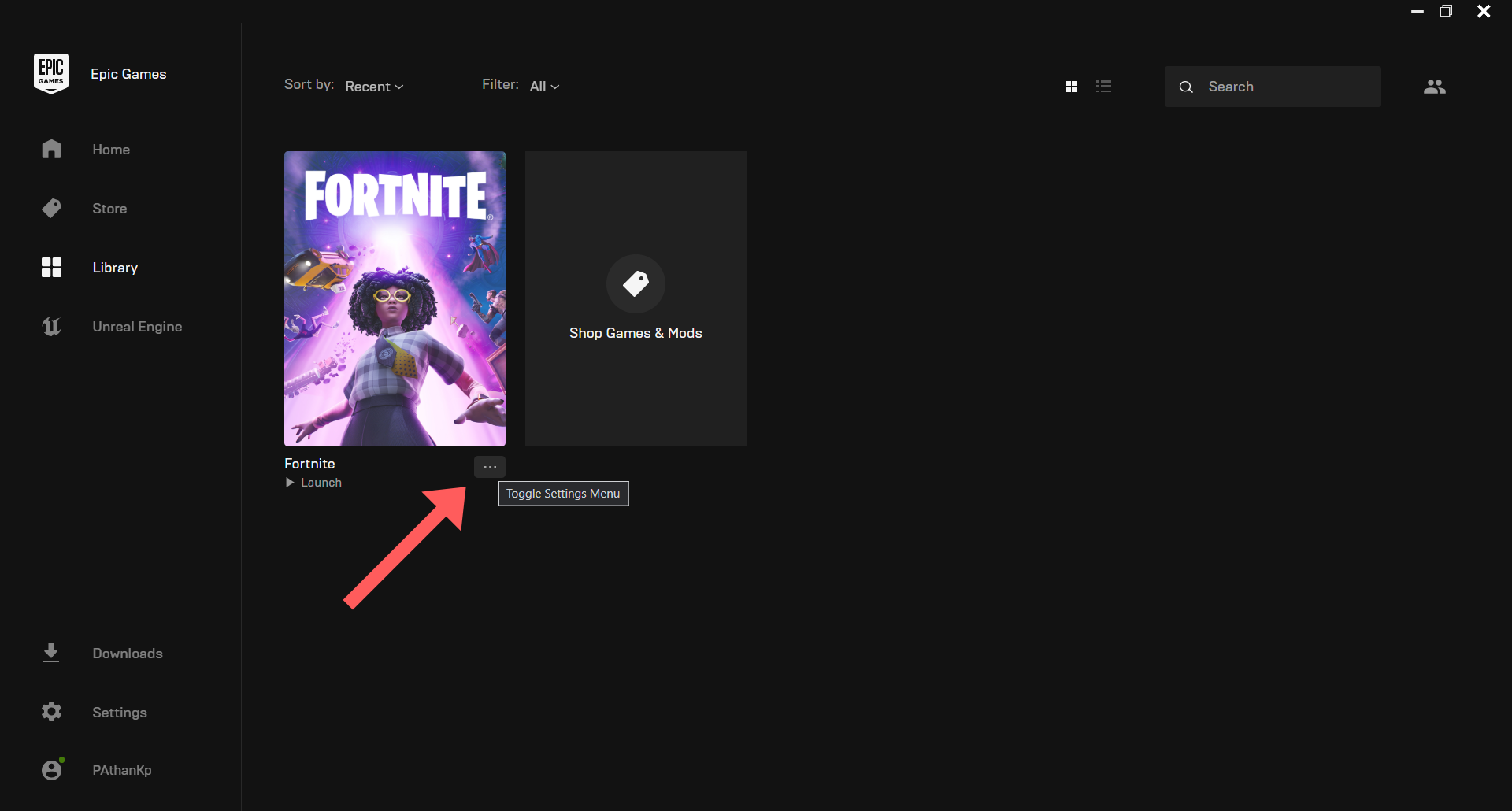
4. Select “Uninstall“.
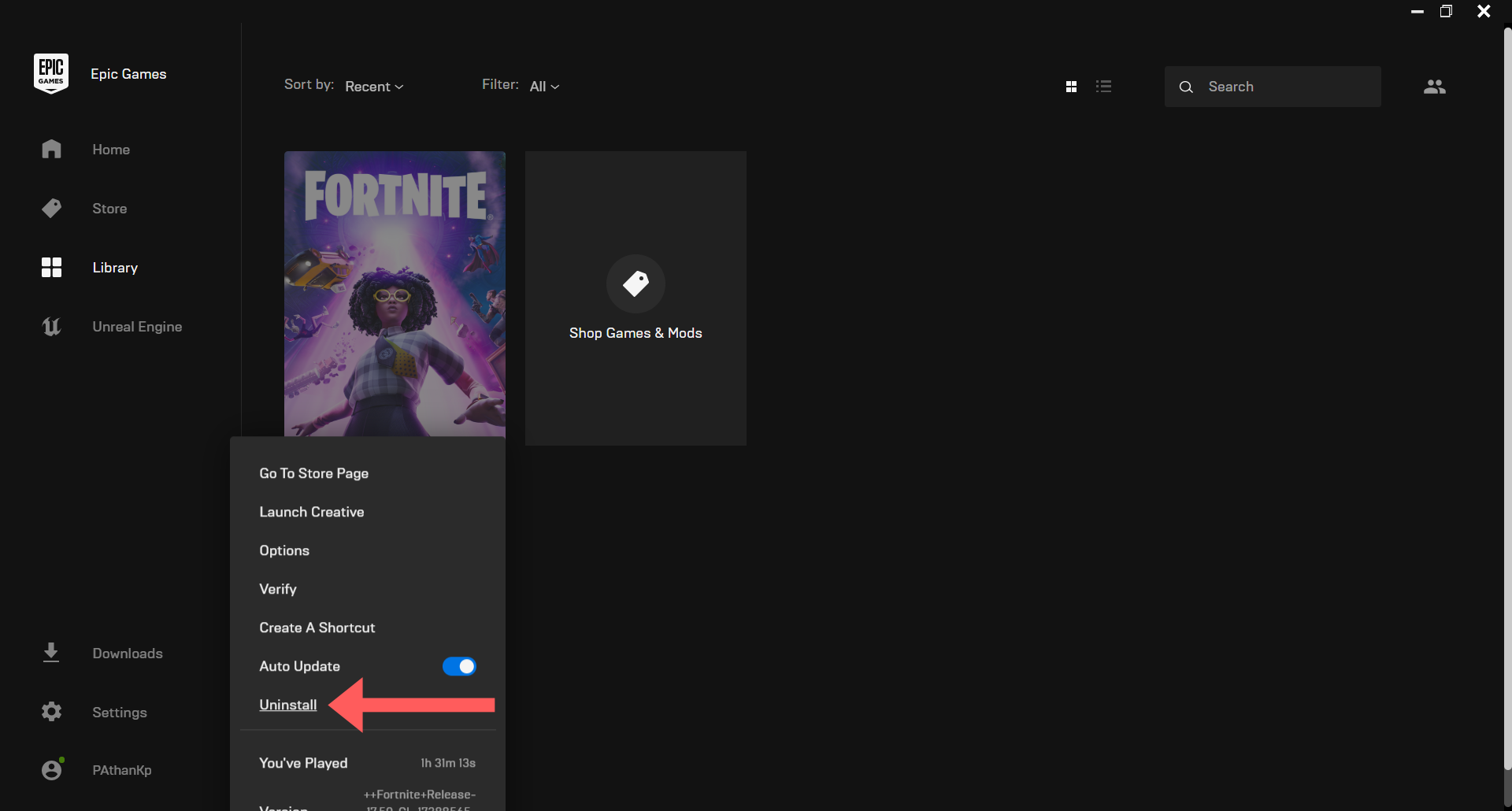
5. Now click on the “Uninstall” button.
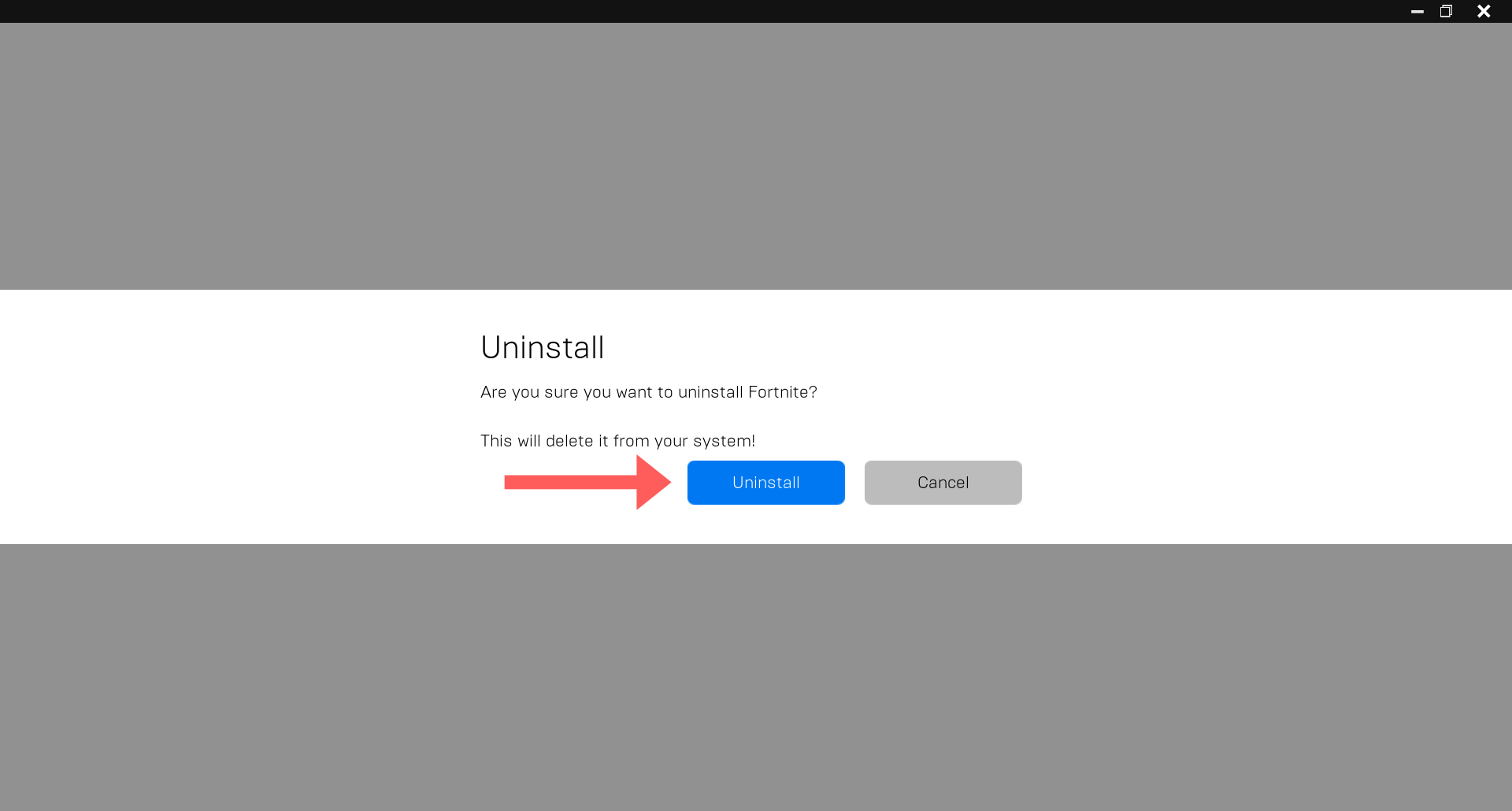
You have successfully uninstalled Fortnite from your C: drive. Now it’s time to re-install the game but in a different drive. However, instead of downloading the 34+ GB of files again, we will use the backup files.
Install Fortnite on a new PC, Drive, or Custom Location
It’s a crucial step for moving Fortnite to another drive or folder. After uninstalling Fortnite, it’s time to install it again, but in a different location. To do so, follow the following steps:
1. Launch the Epic Games app.
2. Select “Library” on the left side of the menu.
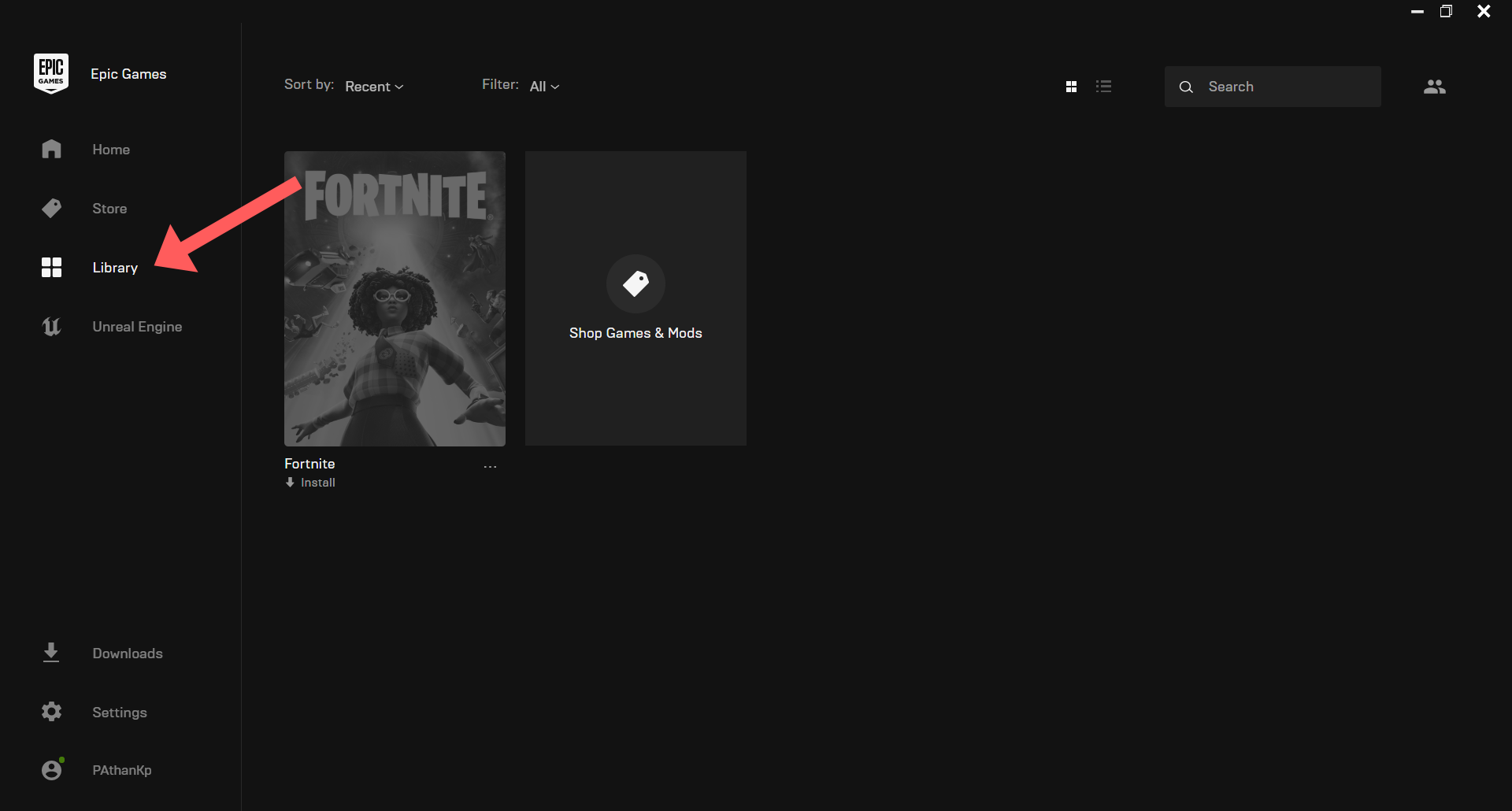
3. Now click on “Install” under the Fortnite thumbnail.
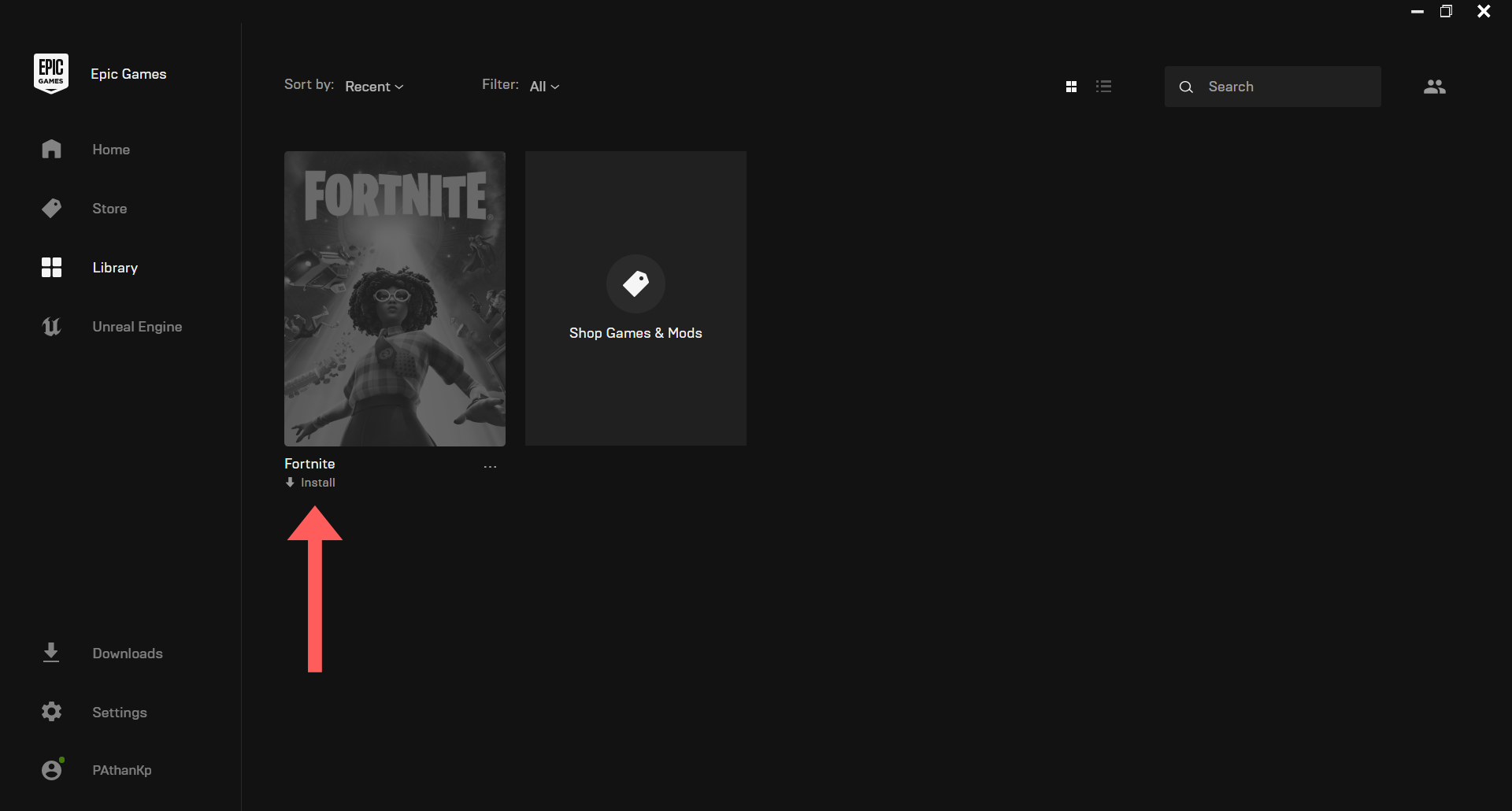
4. Click the “Browse” button and select your drive & folder.
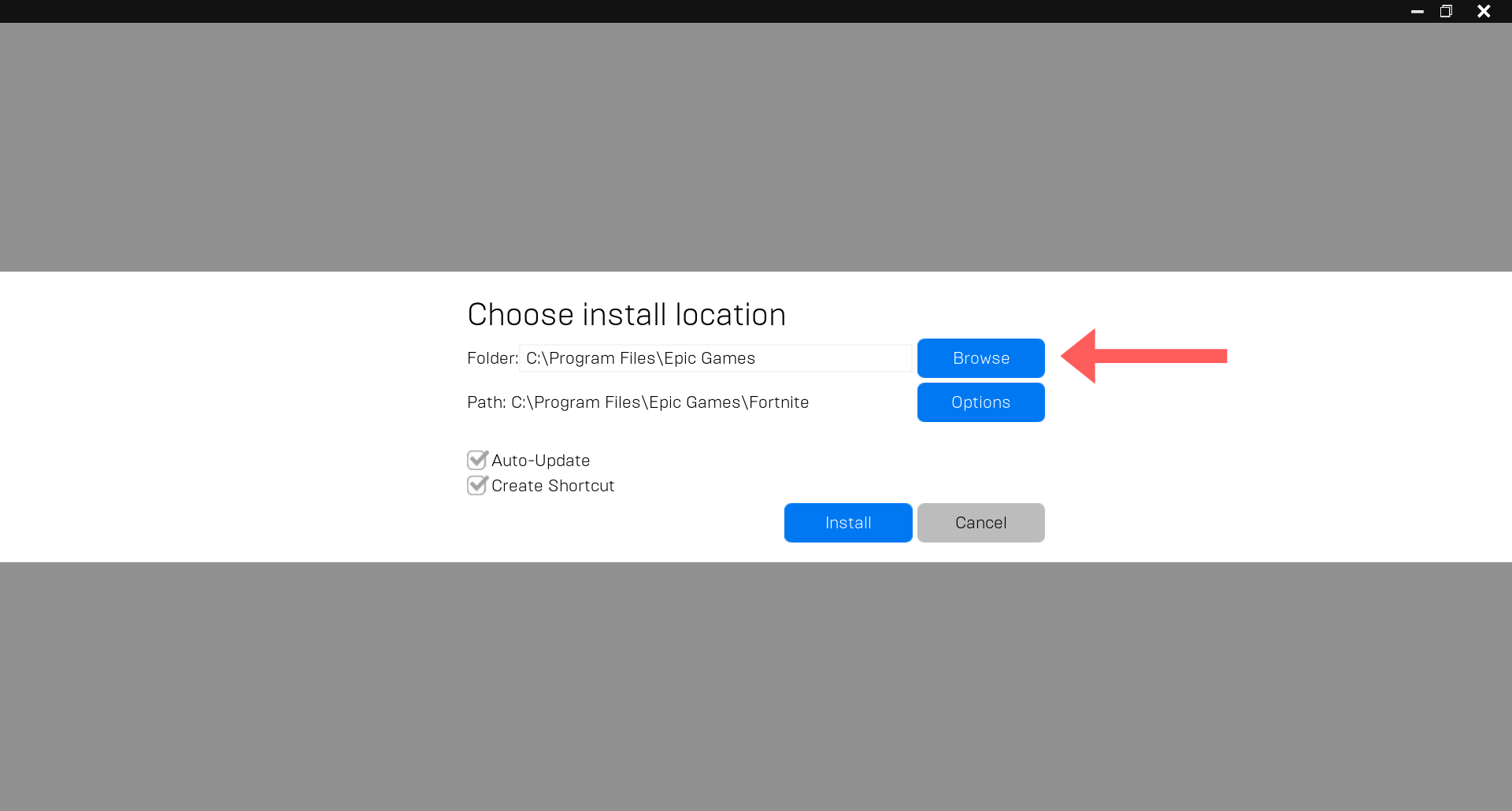
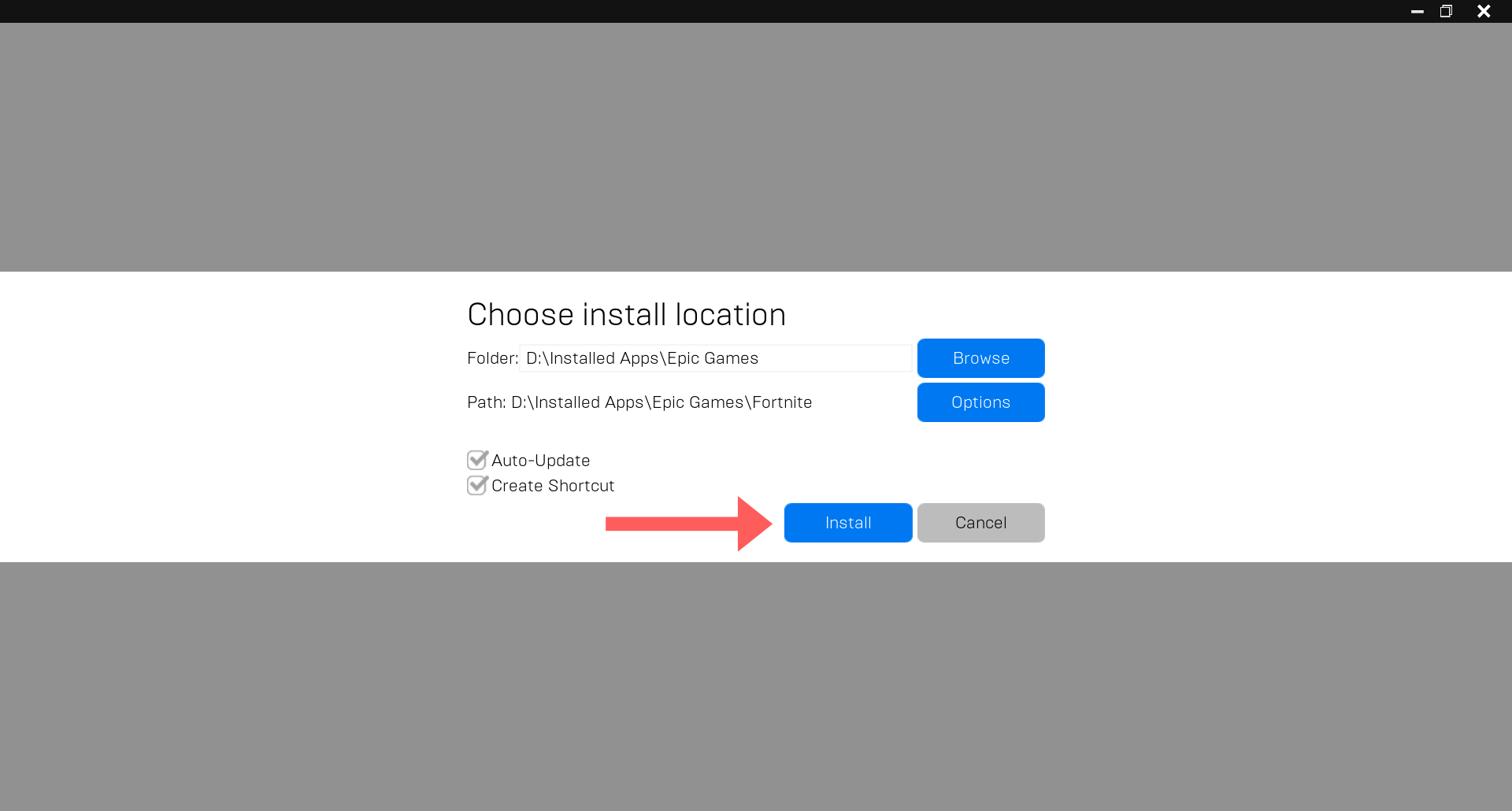
5. Now click the “Install” button.
Cancel the Download and Close the Epic Games Launcher
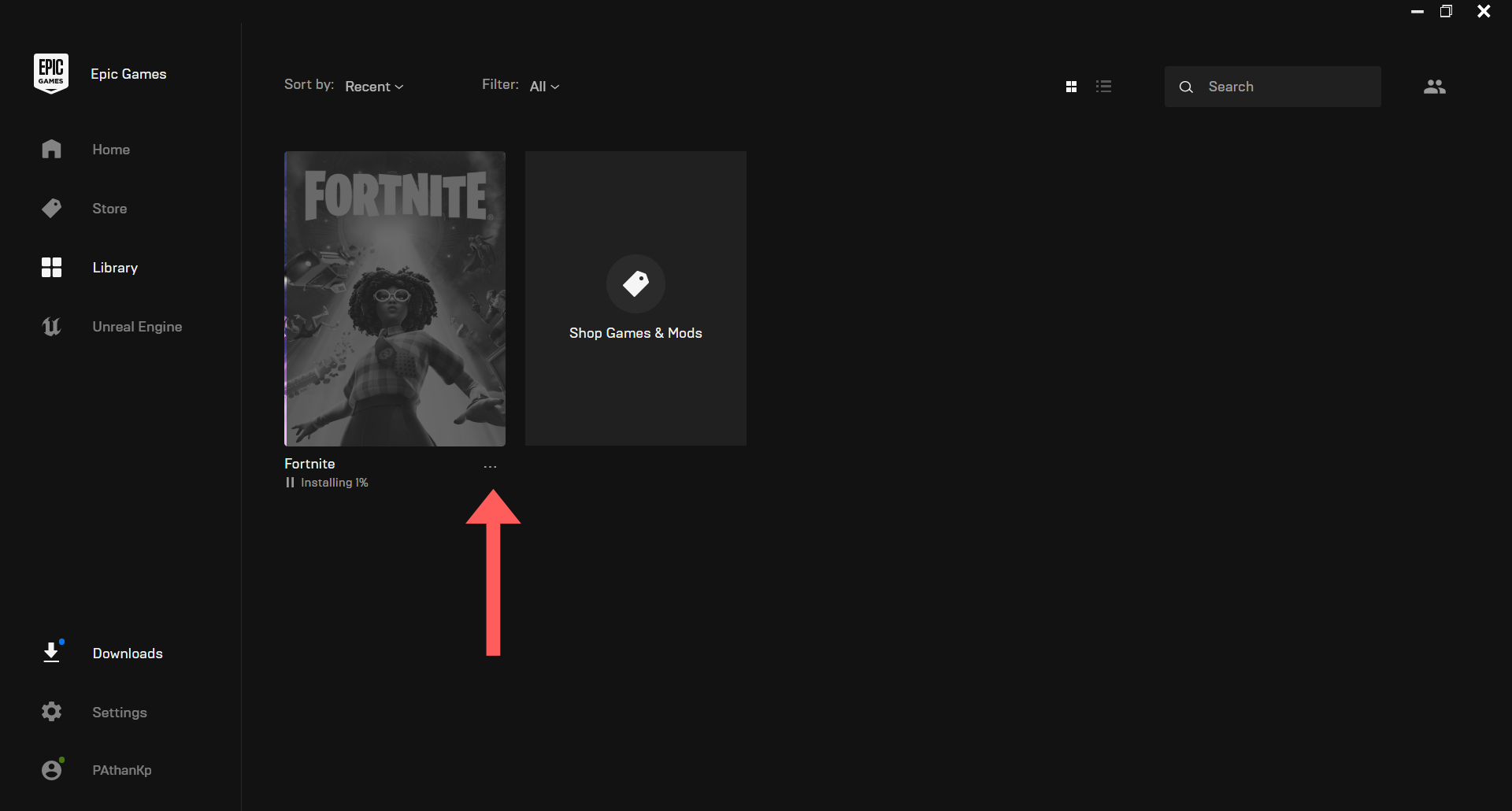
After the installation begins, please wait for a few minutes until it downloads 1-2% and cancels it. Right after canceling the download, close your Epic Games launcher immediately. Here are the steps to cancel the download:
1. Click on the three dots under the Fortnite thumbnail.
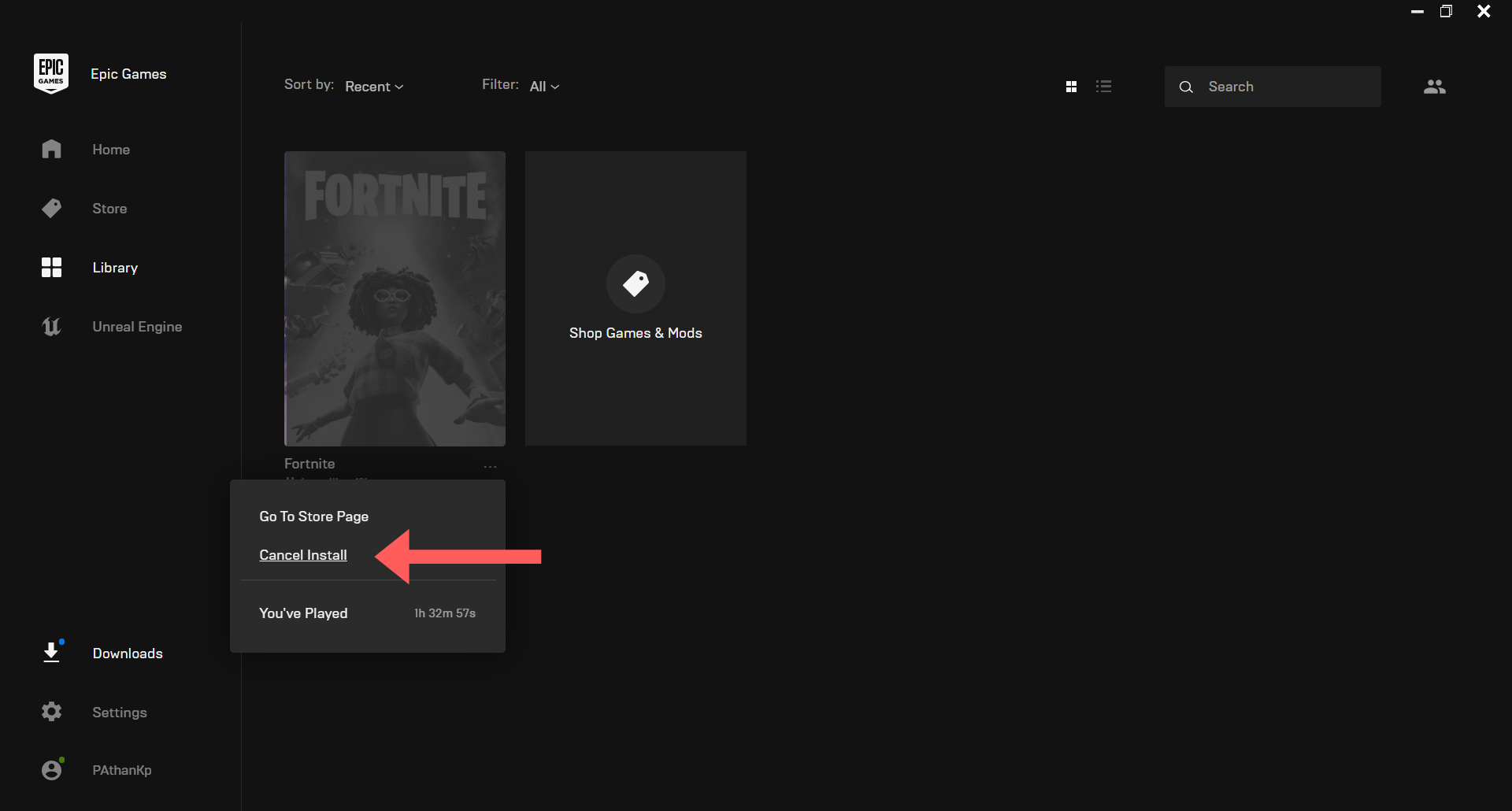
2. Select “Cancel Install” to stop the download.
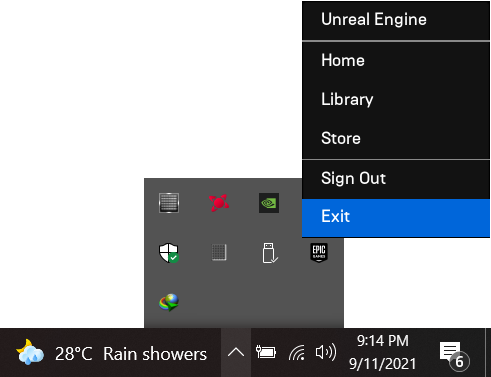
3. Now right-click on the Epic Games icon on the Taskbar and select Exit.
Move your backup files to the new Location
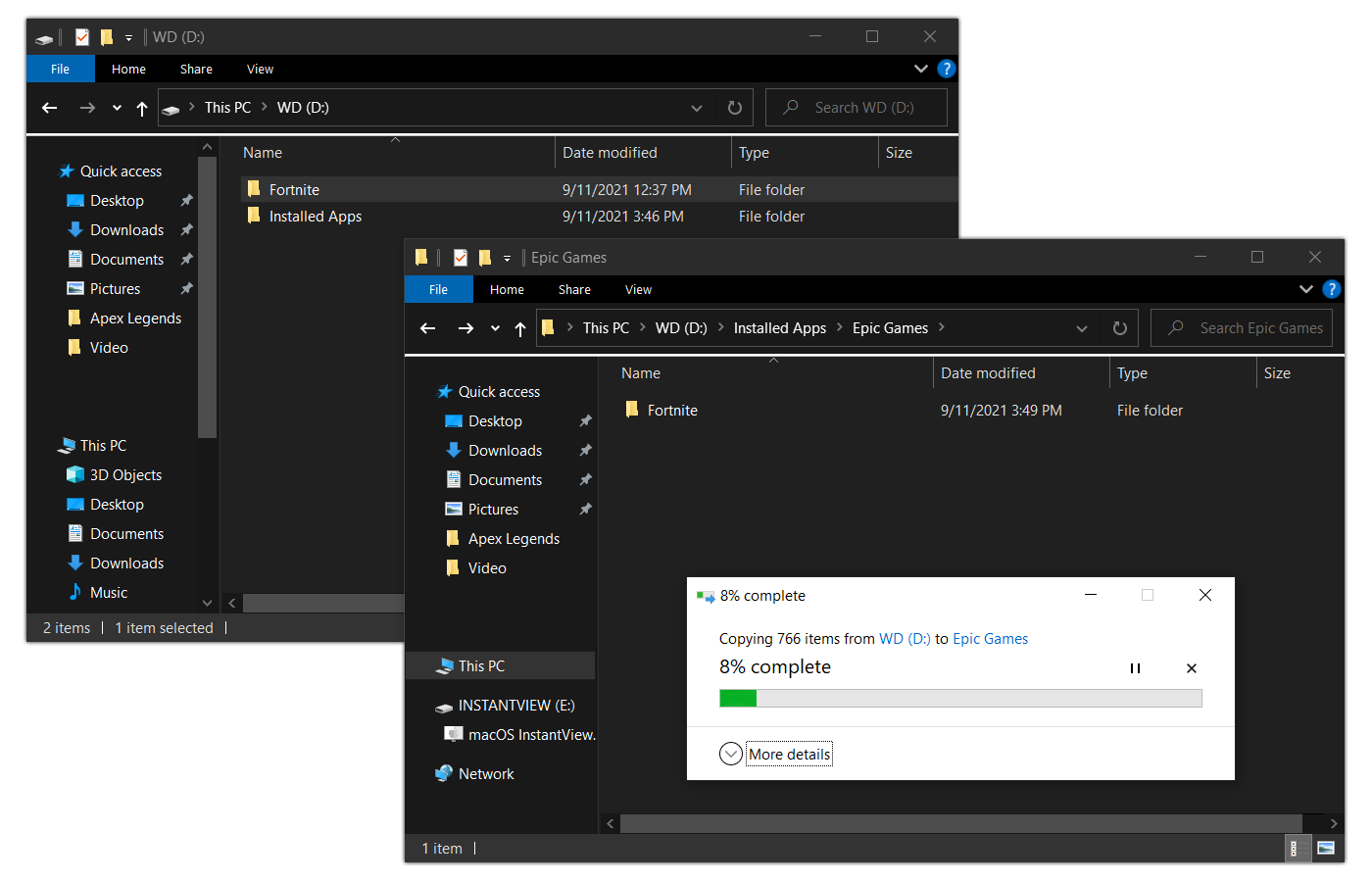
Now, we have a new location for Fortnite in our D:\Installed Apps\Epic Games\, which is mostly empty since we canceled the download. It’s time for us to move or copy the backup files from the root directory of the D:\ drive.
1. Copy the backup files to the newly installed location.
2. Restart or Relaunch Epic Games.
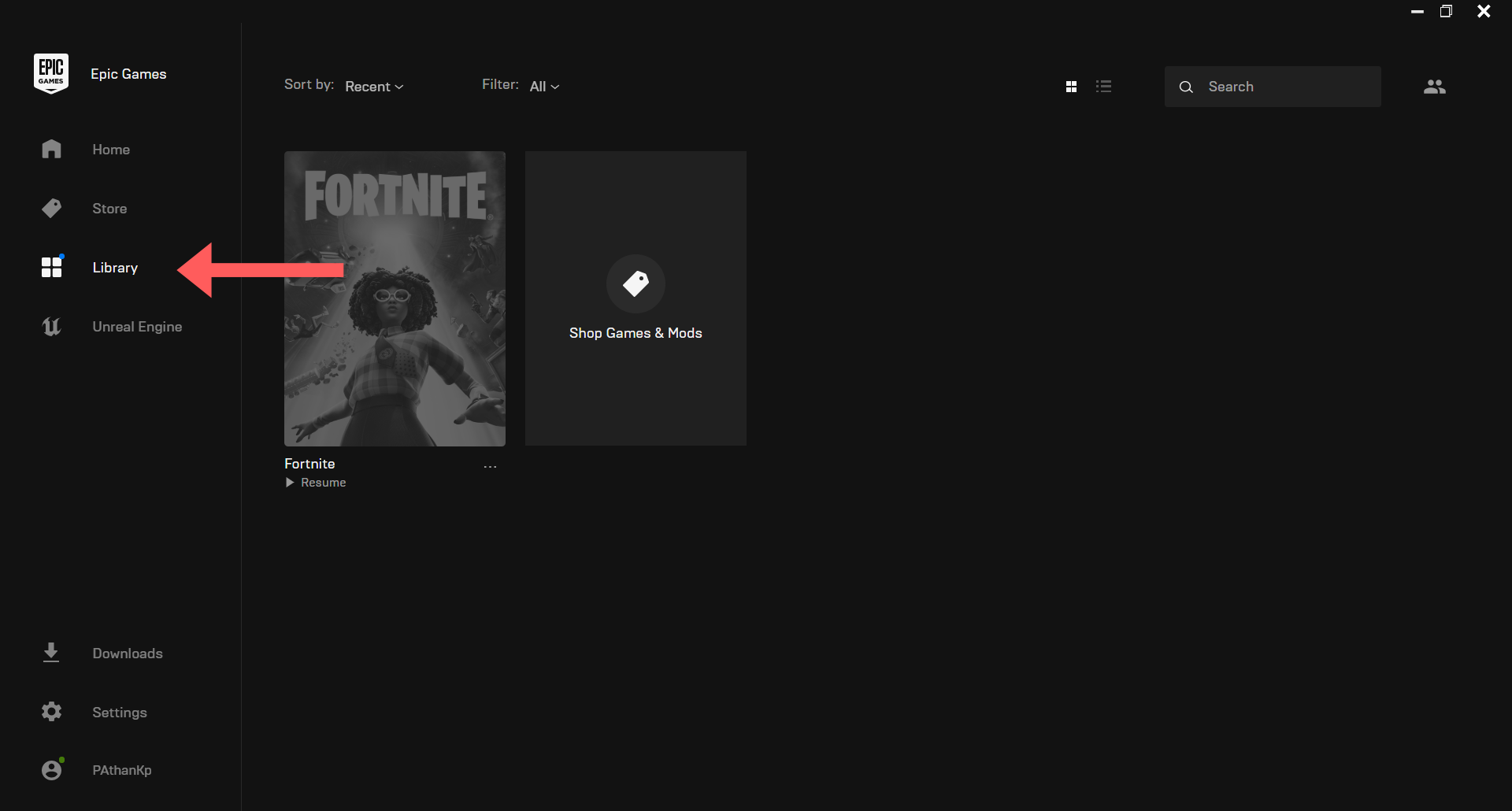
3. After launching the app, select Library on the menu.
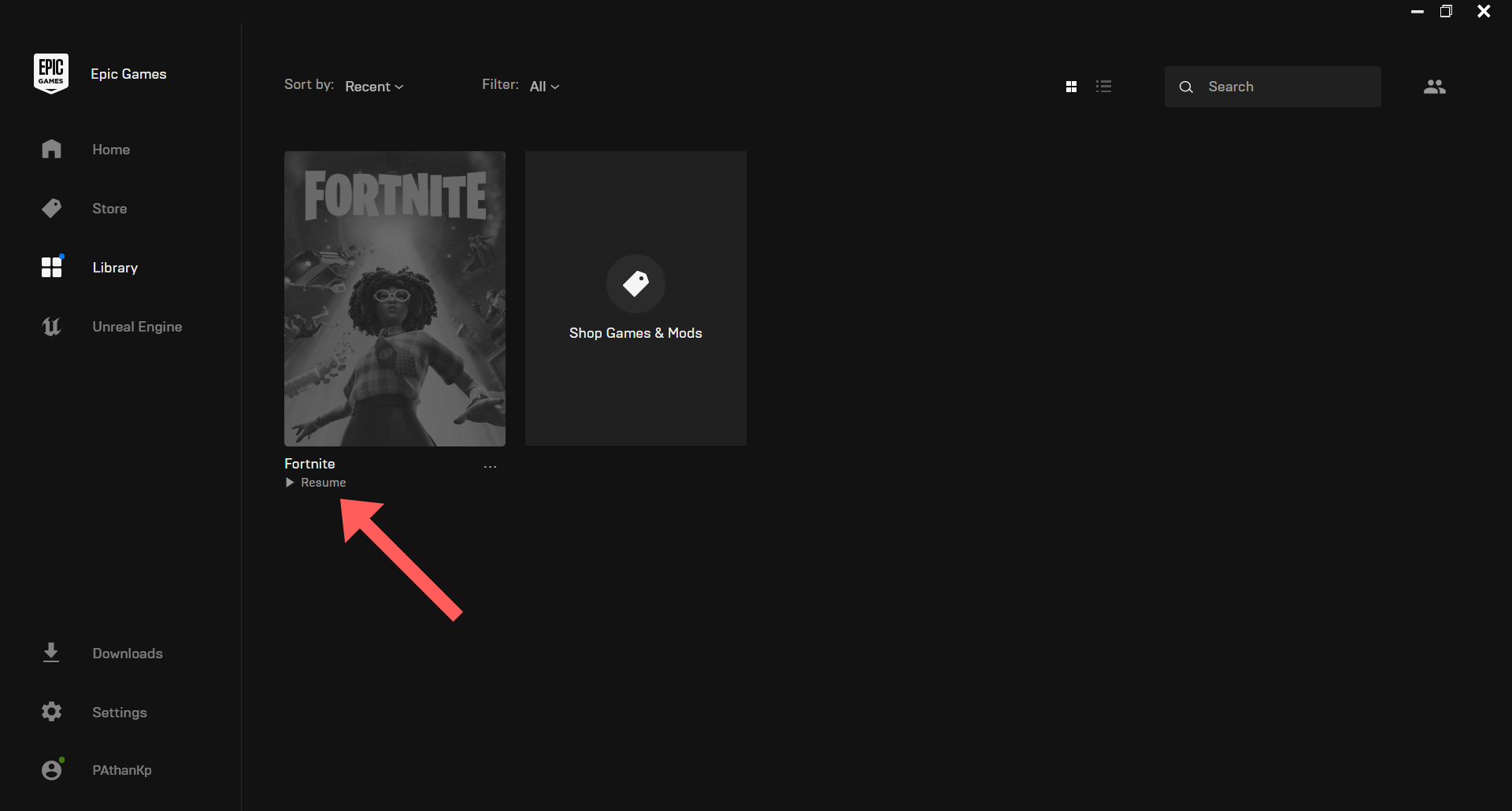
4. Click “resume” under the thumbnail.
5. It will take a couple of minutes to verify the files. In my case, it took 2 minutes.
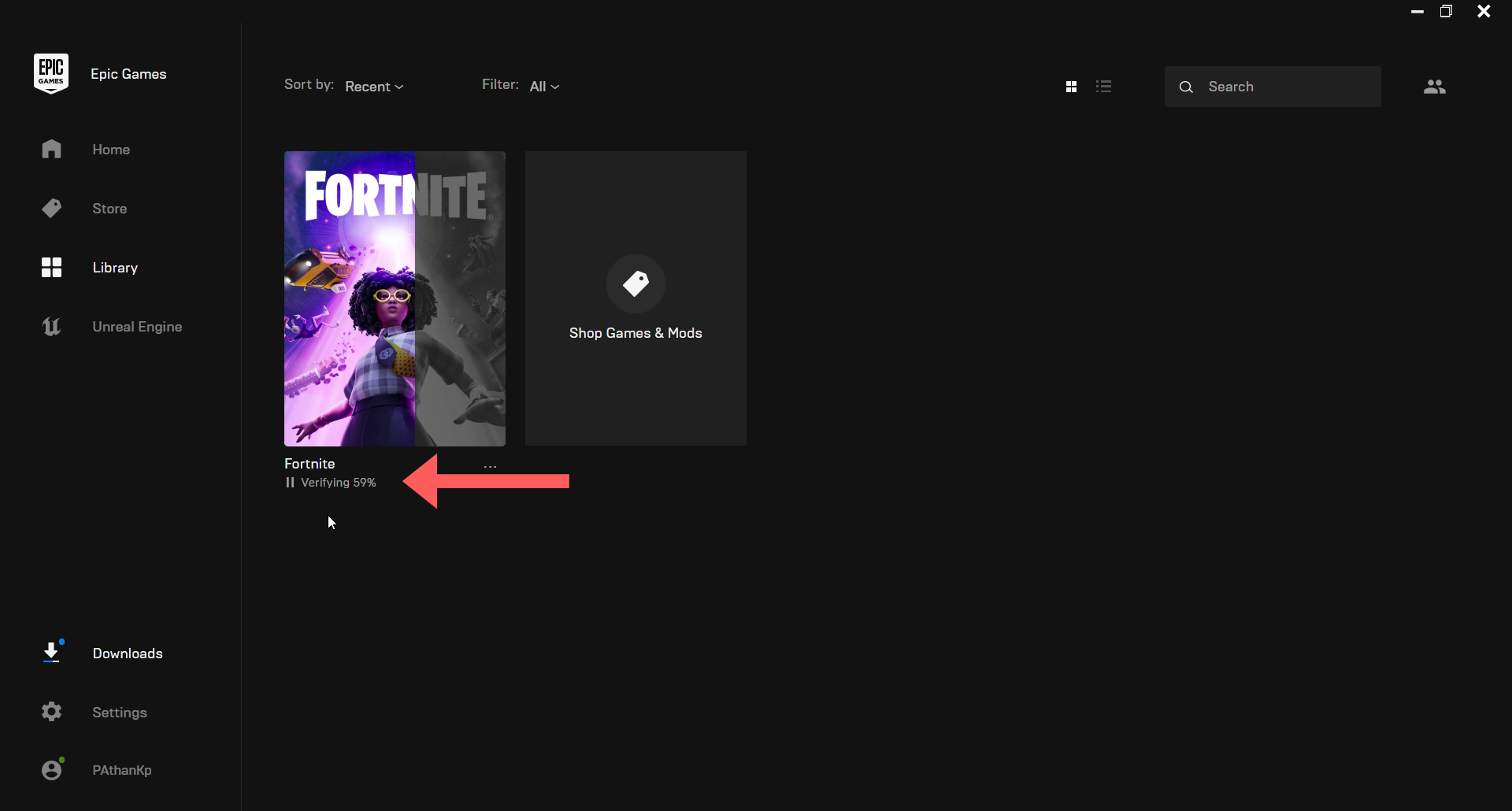
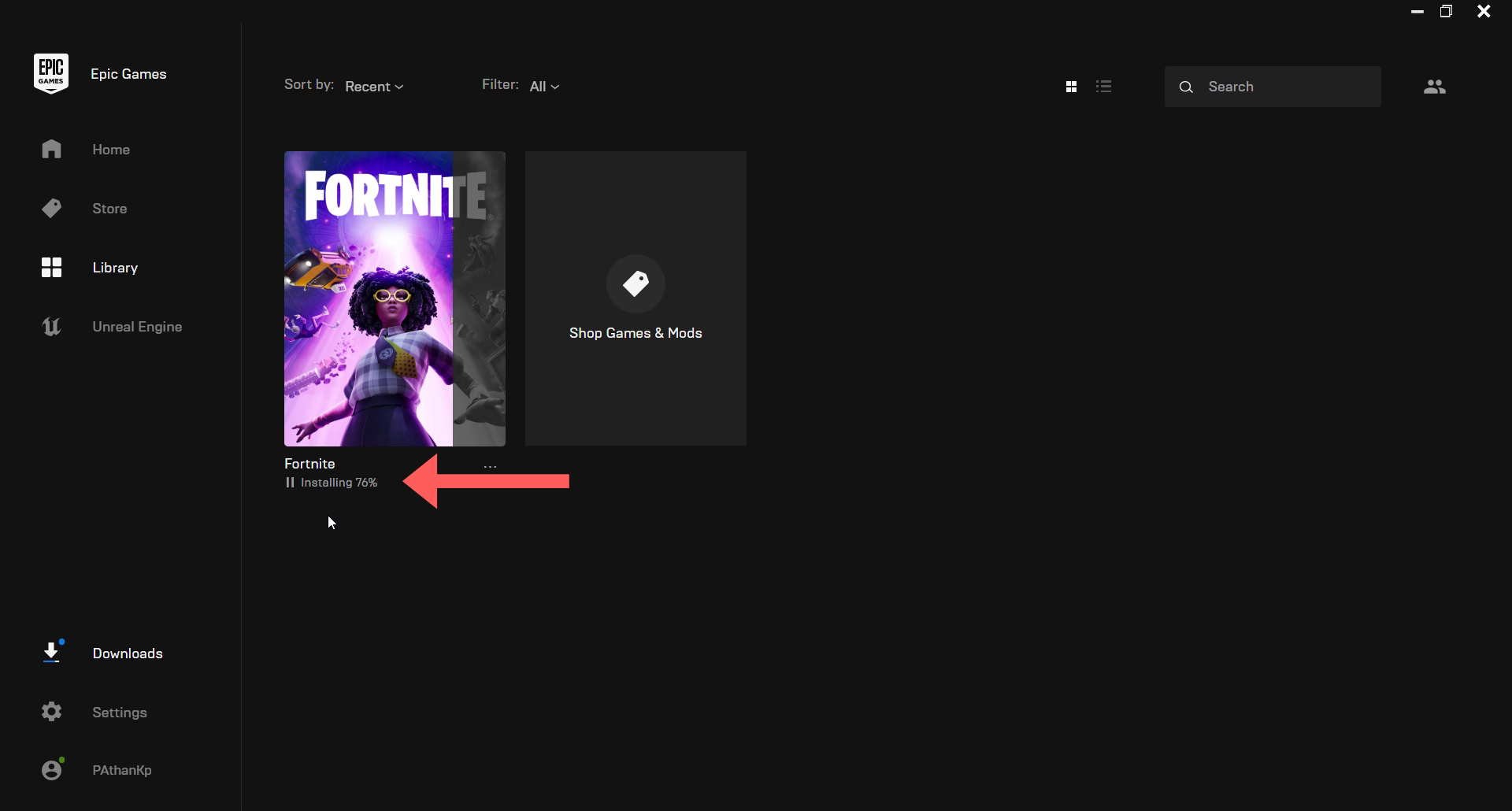
6. After verifying the files, it will begin the installation, which takes less than 1 minute.
7. Once done, you will see the launch button.
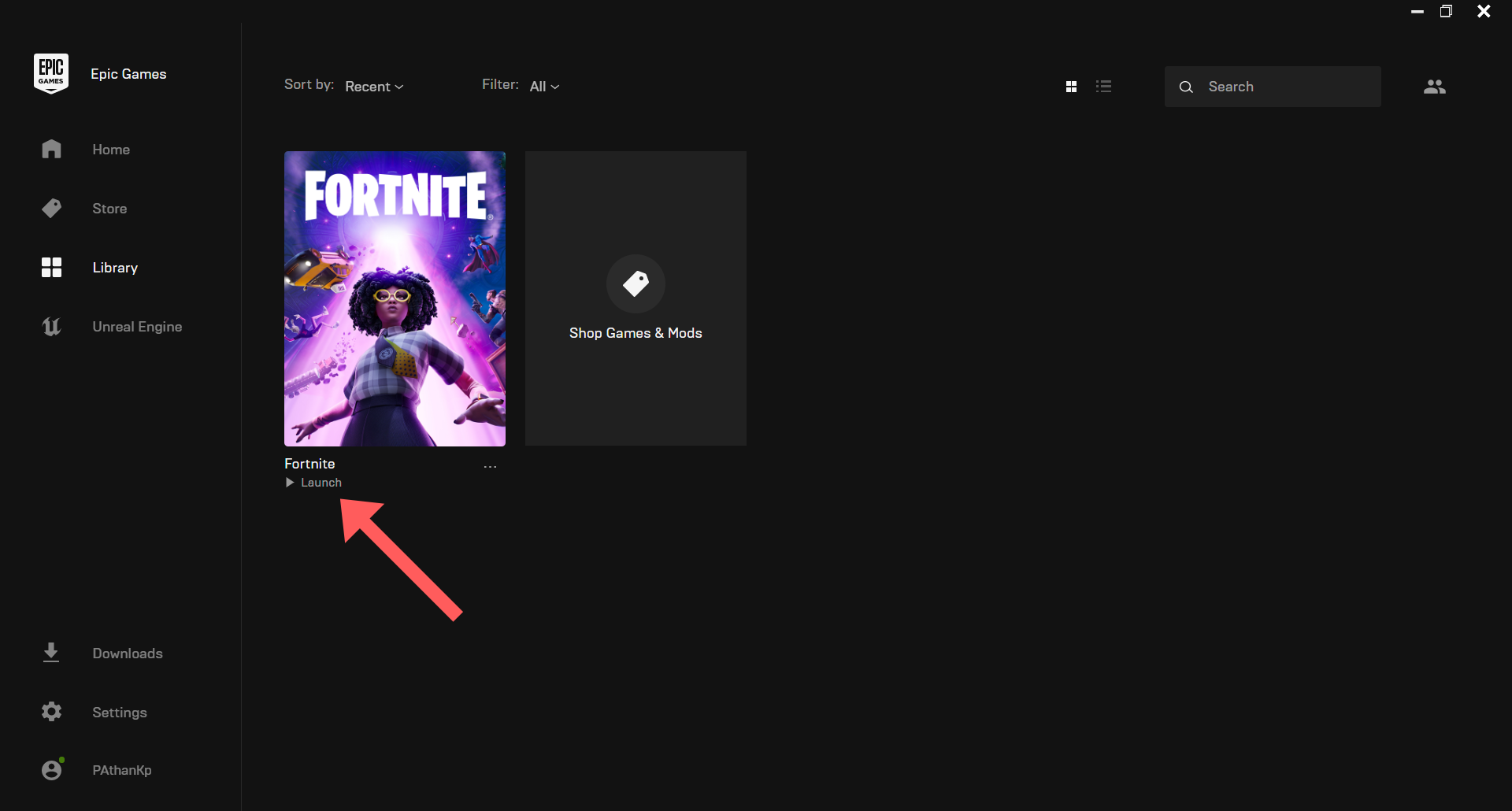
That’s it. You have successfully moved your Fortnite game from C:\ to D:\ drive. Now, you are ready to play your Battle Royale. If you are planning to build a custom desktop PC, check out our best Gaming Monitor under $300 list. Of course, it is crucial to have a great headset as well. Be sure to check our best Audiophile headphones for FPS gaming.
Summary
This article explains the only method to move Fortnite files on to same or another PC. However, I recommend reading Epic Games official instructions. There are some great tips for beginners and experienced players alike. I hope this article helped you to understand how to move your Epic Fornite files around with ease.