


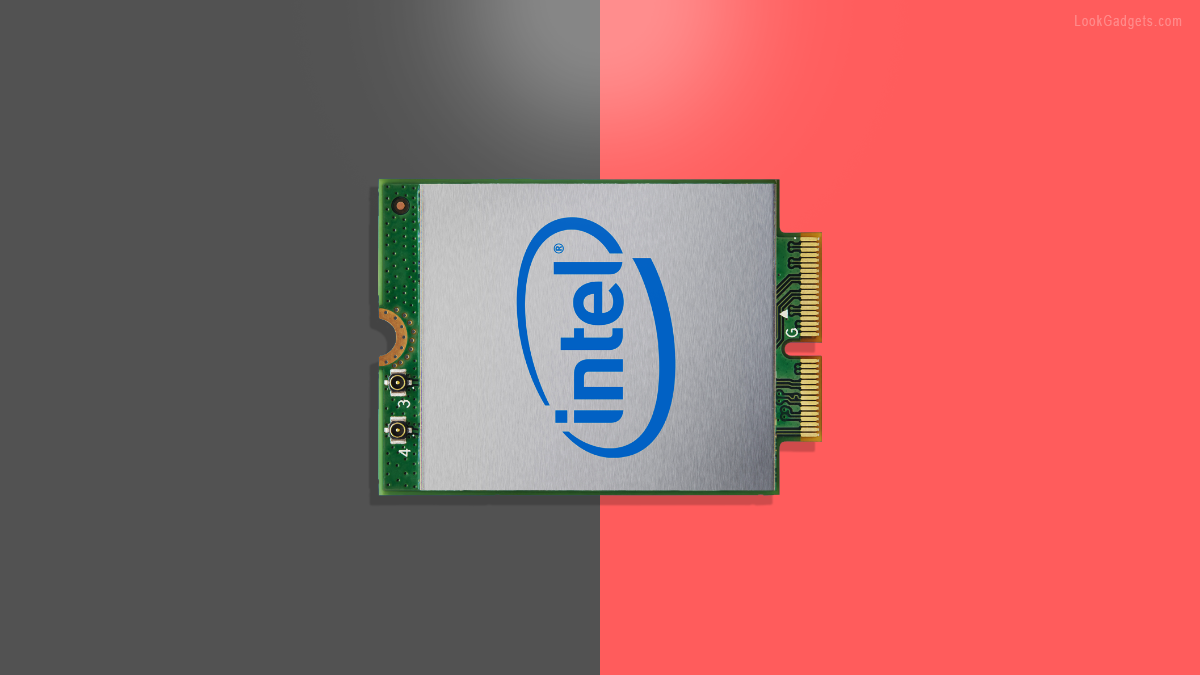
We understand how frustrating it can be when your Laptop WiFi stops working and you’re forced to use Ethernet. Fortunately, there are tons of Mini PCIe and M.2 wireless cards available to upgrade your Notebook computer. Besides, with the release of 802.11be, it may be time to upgrade your laptop with a WiFi 7 card.
In this guide, we’ll provide a quick overview of internal network adapters for laptops. You will find some of the best laptop WiFi 6 and WiFi 7 cards throughout this article. However, since there are only a handful of manufacturers making wireless modules, we will not be talking much about the product itself.
Qualcomm, Intel, and MediaTek are the top players manufacturing wireless modules for consumer end devices. Broadcom is popular among laptop manufacturers, but now it’s not much of a choice for replacement buyers. However, we recommend Intel when it comes to buying a laptop WiFi card replacement. Mainly because it is easily available in any store, and Intel is always the first to release the latest standard chipset.
Now, the question arises: which WiFi card should you choose? Before we answer that, let’s discuss what a Wi-Fi card is and why you need it. And most importantly, why you should upgrade to 802.11be instead of 802.11ax/axe.
What is a Wi-Fi Card?
Every laptop brand includes a Wi-Fi card, which is an internal wireless network adapter. It comes in various form factors specifically designed for portable devices. Older laptops likely use the Mini-PCIe slot, while the M.2 form factor is more common in newer devices. The WLAN module enables internet access via the IEEE 802.11 wireless standard and features Bluetooth compatibility and a built-in antenna for optimal range.
Why do you need a Laptop Wi-Fi Card?
The WiFi card is an essential component of any Notebook computer, as it allows data transfer between devices by transmitting wireless signals from your router. Without it, you are left with Ethernet to access the Internet on your laptop.
You cannot get online if your wireless module is broken or malfunctioning. Some people attempt to use a USB WiFi adapter instead. Still, it’s not advisable, as USB WiFi adapters are not designed to be permanent replacements. They are prone to frequent dropouts and other issues.
Why should you upgrade your Laptop to Wi-Fi 7?
Buying a computer now seems straightforward: you go to a store, pick a system per your needs, and pay. However, to get most of your laptop, you must maximize how it uses the Internet. The latest 802.11be wireless standard provides a more robust and reliable connection than its predecessors. Whether you have an old laptop or the latest 2023 model, as long as it has an M.2 slot, you can upgrade your WLAN card to WiFi 7.
However, you can only get the maximum speed if your wireless router also supports 802.11be standards. Otherwise, it will switch to backward compatibility mode, and you will only get speed based on your current router standards. While you are at it, we recommend upgrading your home network with the best WiFi 7 router. This will help you achieve maximum WLAN speed on your laptop.
With that said, the latest 802.11be standards offer maximum download and upload stream and overall better performance.
Intel vs MediaTek: Which Chipset is Better
In our experience, Intel wins the race with slightly better driver and software compatibility than MediaTek. Hiccups and network performance issues have been experienced with MediaTek in the past, which is the primary reason we recommend Intel over MediaTek. Both companies generally provide similar products that are compatible with most laptops on the market. Except MediaTek adapters are limited to Windows and do not support Linux and ChromeOS.
The decision of which chipset to choose is ultimately up to you. However, we recommend the Intel Killer series for gaming enthusiasts. Any WiFi 7 card is generally sufficient for gaming and 8K streaming, provided you have a compatible 802.11be wireless router.
Choosing the right one would be challenging with the wide range of selections available. You may encounter technical jargon, such as MU-MIMO, 4K QAM levels, and 320 MHz WiFi channels, which can be confusing. While it’s essential to understand these terms as an end user, you should primarily focus on hardware compatibility and the number of frequency bands.
Now, without further ado, let’s dive into our best products list. Whether you’re an expert or a novice, you will definitely find something to improve your laptop’s wireless internet speed.
List of the Best Laptop WiFi Cards in 2023
- Killer AX1689i
- OKN Intel BE200
- OKN Intel AX210NGW
- MediaTek MT7921K
- EDUP Intel AX210HMW
- NETELY Intel AX200NGW
- Intel Wireless-AC 9560
- Intel Wireless-AC 9260
- Intel Wireless-AC 8265
Killer Wi-Fi 6 AX1690i – Best WiFi 6 Card for Gaming Laptop
While it is not the WiFi 7 card for gaming laptops, Killer is our go-to recommendation. Rivet Networks, the company behind Killer Networking, was the first to release proprietary software and gaming WLAN modules for Notebook and Desktop computers. However, we haven’t seen any significant improvements or additions to the family after Intel’s acquisition. Still, it is one of the best wireless adapters for any laptop to upgrade its networking performance.
The chipset inside this module is basically the same as any other Intel module. However, the magic happens with the proprietary application, which comes with the Killer Prioritization Engine, previously known as Advanced Stream Detect 2.0. I know it’s jargon, but it means the software automatically detects and prioritizes network traffic between the running apps. For example, you are playing an online multiplayer game while simultaneously your web browser is downloading a large file. In that case, the app will prioritize your online gaming session first. This way, you can enjoy a smooth experience without latency lags. This applies not just on a single case use, but also while you stream 4K content online. You can manually adjust each application’s bandwidth and priority based on your case use. It also lets you disable the throughput on certain conditions and applications.
Pair it with the best WiFi 6E router; the Killer AX1690i will provide up to 2.4 GHz throughput even over long distances. Compared to 802.11ac, it can throughput three times more bandwidth with its 160 MHz channel in general performance tests. Since it’s a WiFi 6E card, you can use the additional 6 GHz frequency band to achieve the maximum speed. However, the 6 GHz band is only best at shorter distances. As for Bluetooth, it has version 5.3, which performs exceptionally well with all modern devices.
All in all, whether you have a gaming laptop or any other PC, the Killer AX1690i will help you get maximum wireless coverage and speed.
Note: Intel acquired Rivet Networks in May 2020. After the acquisition, the company sells the Killer cards in their own store at Amazon. Now, you can also find these modules from resellers on eBay and AliExpress.
OKN Intel BE200 – Best Laptop WiFi 7 Card for M.2 E Key Slot
The OKN BE200 adapter stands out for its maximum range, outstanding performance, and enhanced security. It offers a combined total WLAN speed of up to 9.3 Gbps across all three bands. This is just a theoretical figure of maximum speed. In the real world, it gets up to 450 Mbps on 2.4 GHz, 2 Gigabit on 5 GHz, and 4.5 Gigabit on 6 GHz. The most significant improvement over the AX210 is the 320 MHz wider channel throughput on the 6 GHz frequency band, enabling fast data transfer even in congested networks. However, this benefit only applies if you have a compatible 802.11be wireless router.
Equipped with Low-Energy Bluetooth 5.4, this module enhances battery life and reduces latency and interference with other devices. It remains compatible with existing routers, offering improved performance even if you don’t have a modern router at home. You can expect a stable connection for online gaming sessions, video streaming, and downloading large files.
Regarding port and hardware support, this card is only compatible with the latest generation of M.2 NGW E Key slots. Therefore, if you’re purchasing this WiFi 7 card for an older-generation laptop, it may not be compatible. It’s crucial to check the specifications or disassemble your device to confirm if your laptop’s M.2 slot supports the E Key-only module. If it does, you’ll benefit from the latest 802.11be standard and Bluetooth 5.4 technology. Overall, this card offers faster speeds, greater efficiency, and a 40% power-saving capacity compared to previous versions.
Please note that it’s still early to upgrade to WiFi 7. The features and benefits discussed above won’t fully utilize the potential of older routers. Nevertheless, this card is an excellent choice for future-proofing your laptop.
OKN Intel AX210NGW – Best M.2 Wi-Fi 6E Card for Laptop
With most ISPs now providing Wi-Fi 6 or 6E modems, it is an excellent time to upgrade your laptop’s WLAN to maximize wireless connectivity. The OKN’s Intel AX210 features the latest AXE wireless standard, including a dedicated 6 GHz band optimized for gaming and streaming within short range. Experience speeds of up to 574Mbps to 2400Mbps across the 2.4 GHz, 5 GHz, and 6 GHz bands, utilizing 160 MHz wireless channels for maximum efficiency.
While this card doesn’t feature the latest Bluetooth 5.4, it still supports Bluetooth 5.2, which offers similar capabilities to the newer generation. Its backward compatibility with older routers ensures seamless integration with your existing network equipment, even if you haven’t upgraded yet. In terms of hardware compatibility, it supports both M.2 Key E and Key A slots for versatile installation options.
MT7921K AX3000 – Best MediaTek WiFi 6E Card
You may have seen Mediatek on Asus, Acer, MSI Stealth, and Lenovo laptops. MT7921K AX3000 features a low-power 802.11axe tri-band WiFi 6E card with Bluetooth 5.2. It is a good choice for people who want a fast and reliable WLAN to replace their existing card with the same brand.
It offers speeds up to 574 Mbps at 2.4GHz, 1200 Mbps at 5GHz and 1200 Mbps at 6GHz. Additionally, it provides all the features found in Intel adapters, including MU-MIMO, OFDMA, BSS Coloring, 1024QAM, and Target Wake Time (TWT). Hardware compatibility is ensured with support for the M.2 2230 Key-A and Key-E interface.
Here are some specific laptop models that use MediaTek wireless cards:
- Asus TUF Gaming F15
- Acer Predator Helios 300
- Dell XPS 13
- HP Omen 15
- Lenovo ThinkPad X1 Carbon
- MSI Stealth GS66
- Samsung Galaxy Book Pro 360
- Xiaomi Mi Notebook Pro 15
- Gigabyte Aorus 17X
It’s important to note that this WLAN is explicitly designed for Windows PCs and does not function on Linux or Chromebook computers. If your computer has a BIOS whitelist that restricts specific brand adapters, this may be your only choice.
EDUP AX210HMW – Best Mini-PCIe WiFi 6E Laptop Card
Before going towards some older generations of laptop wireless cards with you, I would like to share the WiFi 6E Mini-PCIe module. EDUP is another prominent retailer on Amazon offering all sorts of networking cards for PCs. The company also manufactures A/V Transmitters, Wireless USB, and Ethernet Adapters for desktop computers. Most of their hardware is based on Intel chipset.
The Intel AX200HMW is a Half-Mini Wireless adapter designed for older laptops with Mini-PCIe slots. With this card, you can enjoy the WLAN performance of a modern Notebook, even if your computer runs on Windows 7.
That being said, you will benefit from the 6 GHz band and the latest Bluetooth 5.3 on any laptop with a Mini-PCIe slot. There isn’t much we haven’t already said; you will get 2400 Mbps on 6 GHZ & 5 GHz bands and 500 Mbps at 2.4 GHz. It also supports OFDMA, MU-MIMO, and TWT. In short, these scientific terms mean it has reduced latency, improved efficiency, and optimized battery performance.
In summary, the EDUP AX210HMW is ideally the best WiFi card for upgrading older-generation laptops. Upgrade any Windows, Linux, or Google ChromeOS computer with the latest 802.11axe WLAN standard.
NETELY’s Intel AX200NGW – Best Dual-Band WiFi 6 Adapter
Intel AX200, released in the first quarter of 2019, was the first WiFi 6 card to hit the market. It supports both Intel and AMD Ryzen laptops with the system drivers available for Windows, Linux, and ChromeOS. In addition to built-in Bluetooth 5.1 technology, it also ensures compatibility with all the generations of 802.11 standard. This module is ideal for heavy gaming, large file transfers, and ultra-fast streaming.
So far, it’s one of the most affordable WLAN modules you can get. If you’re looking for the best wireless card for gaming and streaming, consider the NETELY’s Intel AX200NGW.
Intel Wireless-AC 9560
Despite being an AC Wireless Card and cheaper than the Wi-Fi 6 cards on this list, the Intel Wireless-AC 9560 offers comparable performance, with the exception of OFDMA. However, compared to other 802.11ac cards, this one allows faster download speed and optimal performance. It also supports Bluetooth 5, which may occasionally have issues but generally works well with compatible devices.
Overall, this dual-band WLAN module is an excellent value for money. It’s perfect for those who aren’t quite ready to switch to Next-Gen WiFi 7.
Intel Wireless-AC 9260
Intel Wireless-AC 9260 has a low power consumption feature (a.k.a Smart Power Optimizer) that lets you stay online for extended periods. Although this is less efficient than the Wi-Fi 6 or 7, it offers good coverage and decent performance. It also has minimal to no dropouts or DNS errors, even if you are several rooms away from the router. You can expect a sustained and uninterrupted wireless internet connection all the time.
Overall, Intel AC 9260 is a good option if you have a 2013 or later laptop from HP, Dell, Asus, Acer, or MSI.
Intel Wireless-AC 8265
Intel Wireless-AC 8265 is a 5th Generation 802.11ac or WiFi 5 card. With its dual-band wireless connection, It delivers a maximum speed of 867Mbps. That’s three times faster than Wi-Fi 4. However, this is just a theoretical speed; you’ll get 150Mbps max in a real-life test.
Besides that, it enables smoother video streaming, decreased dropouts, and fast speeds despite being far from your router. This Intel-based adapter only works on Microsoft Windows and is excellent for folks with older laptops.
Buying Guide for Laptop WiFi Card
When it comes to upgrading your laptop’s wireless card, the vast array of choices can be pretty confusing. It’s challenging to identify the one compatible with your computer. Even if you know what to look for, there are a few things to consider before you make a purchase.
Choose the Right WLAN Module
Before diving into the world of laptop wireless adapters, ensure compatibility with your computer’s hardware and operating system. MacBooks, for instance, utilize their proprietary AirPort card, which, while technically similar, is exclusive to macOS. Additionally, MacBook wireless modules are embedded in the motherboard, making replacements challenging.
For Windows and Linux systems, most PCs feature an M.2 or Mini PCIe slot. Choose the appropriate slot based on your device’s specifications. Since these adapters also incorporate Bluetooth technology, opt for the latest version for optimal performance.
If you’re upgrading an older laptop, you’ll need to stick with 802.11axe, as 802.11be is currently limited to the M.2 Key-E slot. For significantly older devices, consider upgrading with dual-band 802.11ac cards.
Laptop Upgradability
Some laptops are harder to disassemble than others, so make sure your Notebook PC is upgradeable in the first place. Also, confirm it doesn’t have a BIOS Whitelist either. The whitelist restricts you from replacing a WLAN card that the manufacturer does not approve. Usually, these laptops only accept the same brand of WiFi card as the old one.
Compatibility
First, Check if your Notebook is compatible with the card you are deciding to purchase. It can be tempting to go for the latest wireless standard — the WiFi 7. However, if you have an old computer, it will probably not work with it. Look into the existing card model and the available slot. Also, make sure whether or not it supports the new adapter.
Form-Factor
The card slot on a motherboard comes in different form factors. Most internal network adapters come in M.2 form factor. If it is an M.2 slot, verify if it supports Key-E, Key-A, or both. Contact your PC manufacturer’s customer support to confirm its hardware specs.
Bluetooth
Please don’t make the mistake of getting a laptop WiFi adapter that doesn’t have Bluetooth in it. Though most wireless cards come with Bluetooth, it doesn’t hurt to check. It’s vital to check which version of Bluetooth you are getting with the module. Remember, Bluetooth 5.4 is the latest version, enhancing Attribute Protocol, LE Power Control, and LE Isochronous Channels.
Software or Drivers
Make sure the driver is available for the hardware you are buying. Generally, your OS will automatically install the system drivers. However, in rare cases, you need to download the system software manually.
Similarly, Intel’s Killer offers a custom solution to unlock extra functionalities. With Killer Control Center, you can optimize and prioritize your internet bandwidth for gaming, streaming, or web browsing. The GameFast Technology allows you to free up your CPU and RAM by pausing background activities to enjoy faster and lag-free gameplay. Sadly, Killer Control Center is only available on Windows computers.
How do I identify my laptop’s current Wi-Fi card?
Option 1
- Open up Device Manager and go to Network adapters.
- Expand the Network adapters list to view all networking devices.
- Here, you can look for your Wi-Fi card.
Option 2
- Go to your Control Panel and click Network and Sharing Center.
- Go to Manage Network Connections and locate your WiFi connection on the list.
- Right-click on your connection and choose status and the details.
Make sure your charger isn’t plugged in before you disassemble the laptop and its battery.
Disconnect the antennas from your old adapter. Usually, there are black and white antenna cables. You’ll need to remember which one goes where; otherwise, your new wireless module won’t work.
Remove the old Wi-Fi module from its dock using a screwdriver. Once the screws are removed, the adapter will then pop out.
Place the new module onto the slot by carefully aligning the contacts.
Screw it in place and reconnect the antennas. Once done, put your battery and laptop cover back.
If you are using Windows 11, it will automatically install or update the driver. Alternatively, you will need to download the driver manually.
Upgrade WLAN Card, but Still Slow Connection
If you’ve purchased the latest WiFi card and have gone through the correct installation procedure, perhaps the problem is with your WiFi router! If you’re using an old router, you’ll need to try a few easy hacks.
- Place your router in the center of your home, ensuring no walls and doors obstruct the signals.
- Make sure your Wi-Fi router isn’t on the floor because routers broadcast waves slightly downwards. This helps you utilize the signal as much as possible.
- Keep the router away from other electronics that could interfere with the signal.
- If your modem/router has two antennas, place one in a vertical position and another in a horizontal. It’s easier to secure a stable connection when your device’s internal antenna is parallel to your router antennas.
You can declutter your laptop if you’ve done all these router hacks. Delete unnecessary files and unused software that could be slowing your computer down.
Verdict: Choosing the Best Laptop WiFi Card
Speed, reliability, and consistency — these are three qualities to look out for when buying a new Wi-Fi card for a laptop. And if that means shelling out a bit of extra cash, we’d say go for it anyway.
The Laptop WiFi Cards are built to last, so it’s best to get one that will provide you stable and consistent connection for your gaming and streaming. It’ll save you time and money in the long run!
From the above-mentioned wireless modules, I would recommend the Killer AX1690i for the best wireless gaming experience. If you like to future-proof your laptop, go for the new Intel AX210 Wi-Fi 6E card.



If you still have working (but slow) wifi, a good first step is often to download the latest driver for your NEW wifi card (while you still have internet access).
This is a very informative review.
I have an Intel ac 7260 in my Asus laptop, Windows 10. It keeps disconnecting.
Tried all sort of trouble shooting, power management settings, wakeup settings ac/n, 2.4 and 5.8 etc.
Also, tried downloading and reinstalling the Intel drivers
Still it keeps disconnecting and always I need to restart the system. Sometimes troubleshooting works.
Thank You
I also had disconnection issues on Windows 10 64-bit on my Asus with Intel AC 7260. Swapped in a new AC 9260 and works like a charm.
Hey, nice article, thanks!
I am wondering what the difference is between A and E Keys.
Also, I see the 8256NGW has a no connectors on the E flap of the card, the AC 9260 NGW has 1 connector and the 6E AX210, all the AX 200 and the AX1650 all have two connectors. I have a Lenovo Yoga 730-15IKB Laptop (ideapad) – Type 81CU that comes with a 8265NGW that constantly looses packets (it sucks!) and was wondering if I could replace it for an AX200 for example.
Thanks again!
I own an old HP laptop model 14-n218tx , that is running on Realtek RTL8188EE 802.11 bgn Wi-Fi Adapter. the network speed is horrible.
I have been looking for mini PCI-E wifi card that is compatible for my laptop . hoping to upgrade it to AC or AX network if possible. Even though i found a few wifi card online that looks the same design and shape but many of the descriptions says they are not compatible with HP laptop. I do not know why and I don’t want to risk purchasing those wifi cards as i’m afraid that it will not work.
is there any wifi card that u can recommend to me based on my laptop model ?